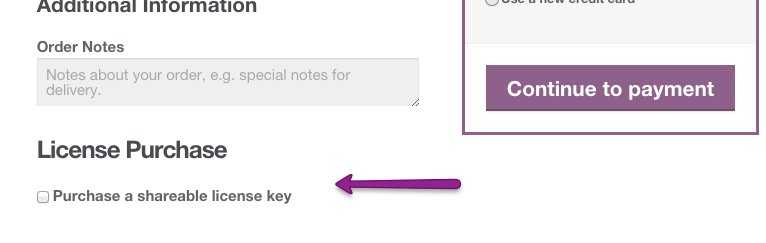
This guide explains what the Multi-License feature does, how to turn it on, and how to use it in day-to-day operations.
What is a Multi-License order?
A Multi-License order is a Bright order that can generate and store multiple license keys for a single purchase.
This is useful when you are selling seats and want separate keys for seat allocations instead of only one shared key.
When should you use it?
Use Multi-License when:
you sell to teams or organizations
buyers need more than one key from a single checkout
you want separate keys to distribute by person, group, or course allocation
For simple direct-to-learner purchases, standard (non-license) or single-license behavior may be easier to manage.
Bright course purchases will be treated as multi-license orders
orders can produce multiple license keys
order details can display multiple keys and related links
Optional: Show the Multi-License data editor on order pages
If you want to review or manually manage multi-license data on each order, enable:
Show Bright Multi-License Data editor on order pages
When enabled, each order page includes a Bright Multi-License Data editor box where you can:
mark an order as multi-license
view/edit the multi-license JSON payload
save updates directly from the order screen
If invalid JSON is entered, the save is rejected and an error notice appears at the top of the page.
What buyers and admins will see
On multi-license orders:
order details can show multiple license keys (instead of a single key)
each key can have a redeem link
each key can have a learners report link (if report pages are configured)
Typical workflow
Enable Enforce Multilicense Orders.
Customer purchases Bright course seats.
Bright creates multi-license data for that order.
Admin can review/manage keys from order details (if editor option is enabled).
Keys are shared with learners for redemption.
Important notes
Multi-License is marked as experimental.
Existing single-license orders do not automatically become multi-license orders.
If you manually change order metadata, always verify license keys and redeem links after saving.
If you keep old and new keys active for the same order, both may remain valid until revoked in Bright.
Troubleshooting checklist
If expected keys do not appear on an order:
confirm Enforce Multilicense Orders is enabled
verify the order is marked as multi-license
verify multi-license data exists and is valid
refresh the order page and check for save notices
re-run order management action (if your workflow uses it)
If learners cannot redeem a key:
confirm the key is valid in Bright
confirm the key was shared exactly (no extra spaces/characters)
confirm account/login requirements on your WooCommerce site
Best practice recommendations
Test one order in staging before enabling site-wide.
Decide your internal process for key distribution (by team, department, cohort, etc.).
Keep a support checklist for buyers who redeem keys for the first time.
Limitations
Each license key in Bright is its own "management unit". That means, learners and courses are associated with the licensing key and that is where they can be modified.
So when using a single order to generate a multitude of license keys, you don't have this single point of control like you have with a multi-learner, multi-course license key, where you could change the courses associated in a single operation.
This means that customers could ask for things that could be labor intensive to realize, like for example "I made a mistake on this order, I put in the wrong course and I gave it the wrong count". By means of a new order, you could generate the missing license keys, but there won't be a single point of administrative control to go back and deactivate any license that is no longer needed, for example just by editing the order details. In this case you may end up disabling them on a one by one basis and for the moment there is no new tooling to assist in this other than what already exists.