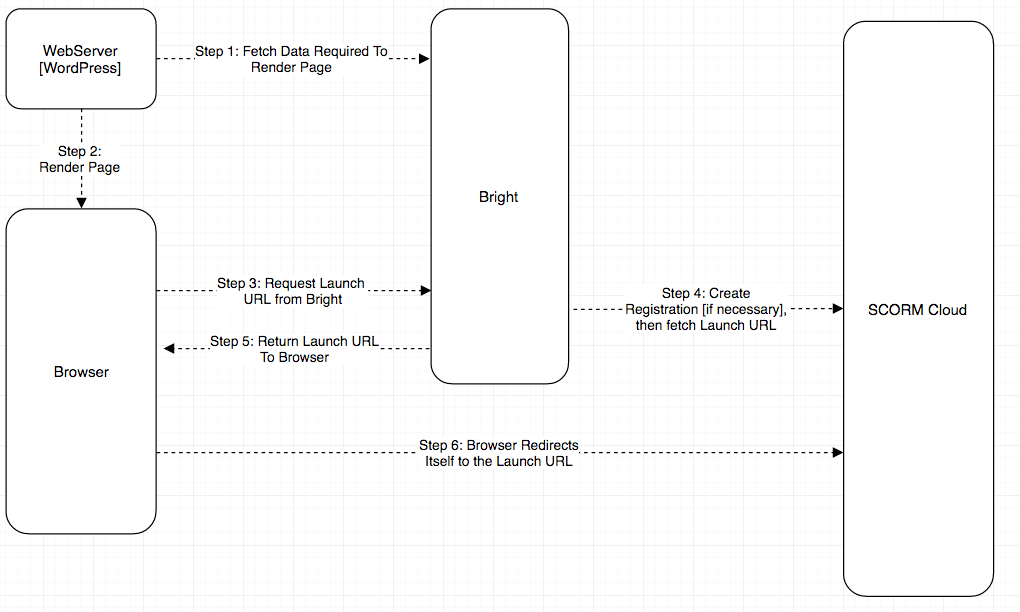
In the Bright V2 API, the browser connects directly to Bright server via the Bright V2 API to create a registration in the launch sequence when a learner does not already have a registration for a course.
In this case, learner data is present in the page, and at launch time it is passed to Bright, which goes into the call to SCORM Cloud that creates the learner registration.
This produces the desired outcome, except in anonymization scenarios, where we want to block the leak of user PII [like first name] to Bright and thereby to SCORM Cloud.
The ideal way to do this is to obfuscate the learner data at the WordPress layer, which means to not store it in the first place.
This document only covers the scenario where:
you have an anonymized email address in WordPress, but you still have first and last name data.
but we still want block these names from leaking to SCORM Cloud or otherwise anonymize it.
any other scenario where we want to modify the data that will end up in the "learner" data on the SCORM Cloud registration.
A good deal of the complexity here is related to how SCORM Cloud manages identity related to registrations, here is some references related to that:
You can think of this document as how to control the learner info passed to SCORM Cloud when a registration is created as a result of a learner clicking a Bright launch button.
Anonymization of Learner Registration Data During Registration Creation.
It is possible to override the default behavior of Bright in terms of user data associated with a registration created in SCORM Cloud.
By default, the registration is created with:
a learner id corresponding to the user\'s email address.
a first name matching the first name in the user\'s WordPress account.
a last name matching the last name in the user\'s WordPress account.
an email address corresponding the user\'s email address. This enables the learner to launch and/or view their registration data directly from the SCORM Cloud website.
To override this behavior, define the following in a Javascript file loaded onto your page:
In this example, bright_learner_id is something that you define elsewhere in your page, for example via:
add_action('wp_footer', function () {
    $user_id = get_current_user_id();
    echo <<<EOF
<script>
  var bright_learner_id = {$user_id};
</script>
EOF;
});
In this case, we just use our WordPress user ID as the SCORMCloud learner_id.
Also note, you can override both the first name and last name. To suppress supplying the email address to SCORMCloud, set the remove_personal_data parameter to any value.
Blocking WordPress User Profile Fields from Leaking into The Associated Bright Realm User
You can suppress this on a field to field basis from Javascript on the page in question:
// This function is called before the realm_user/gcustom callback is called.
// Let's remove any PII ....
BrightPluggable.filter_usermeta = function(data) {
  let host = window.location.host;
  delete data[host].first_name;
  delete data[host].last_name;
  delete data[host].company;
  return data;
};