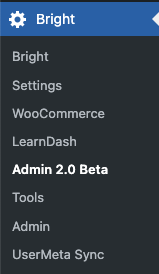
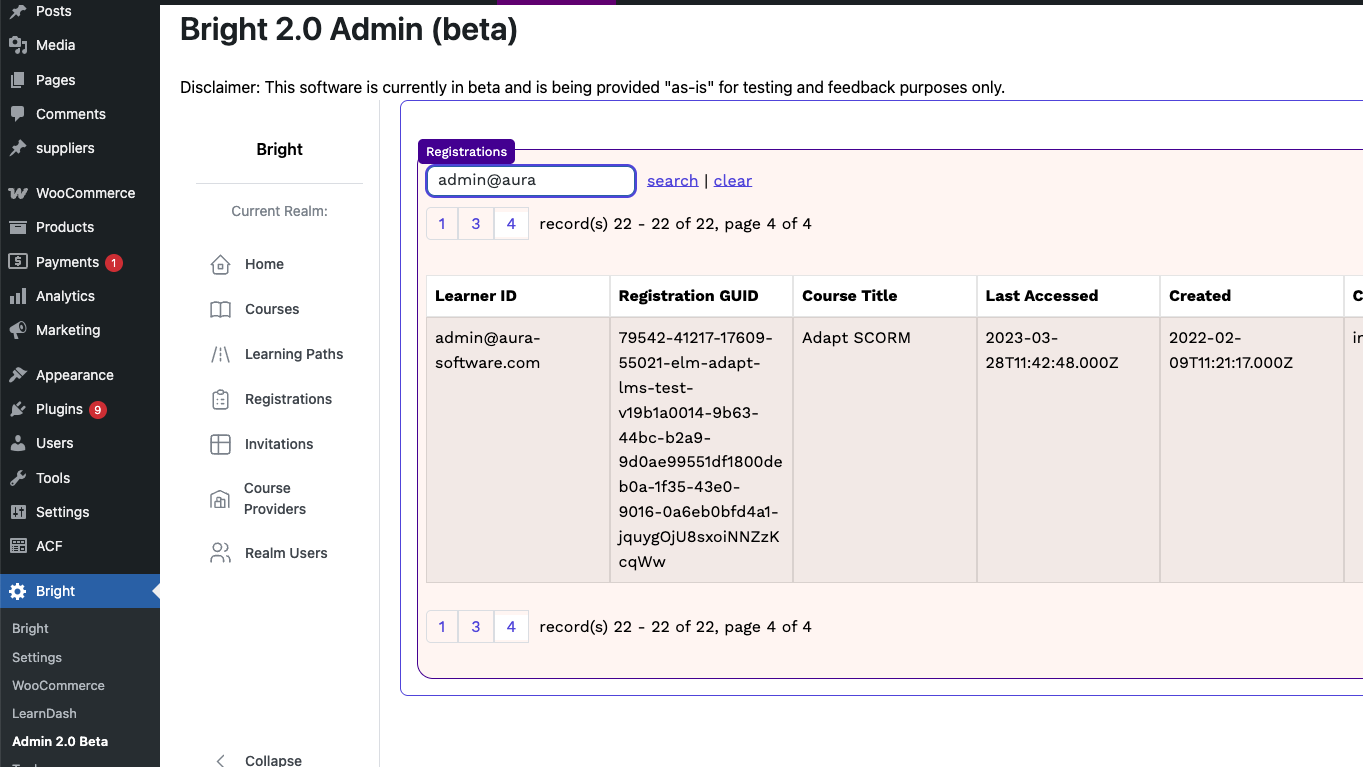
This guide covers the WordPress-embedded Bright 2.0 Admin interface (Bright > Admin 2.0 Beta).
It documents each administrative screen available in this WordPress-managed experience, including purpose, required fields, action buttons, and important notes about what you may see while editing or saving.
The Bright 2.0 Admin tool is also available as a stand-alone web application. In this form the app also include the account management functions such as:
Billing Information
Plan chooser
Invoices
For security reasons, these functions can only be accessed from the stand-alone web application.
Development Status
The 2.0 admin interface is currently in Beta. This means bugs can be present, although the tool is stable in testing. If you notice a bug please report it to support@aura-software.com. Also if you have any suggestions for improving this documentation please let us know. We are actively developing the tool so please get in touch if you have any issues.
This document is a WIP. In same cases user screenshots have not been added as the interface is being actively updated. Thank you for your patience!
Access and Navigation
Open WordPress Admin, then go to Bright > Admin 2.0 Beta.
The app loads in managed mode and opens to Registrations by default.
Main navigation screens are: Courses, Learning Paths, Registrations, Invitations, Course Providers, and Realm Users.
What You Can Accomplish In Each Admin Area
Use this section as a quick orientation before working in each area.
Registrations: Review learner progress, correct stuck records, and apply overrides for completion, success, score, or completion date when needed.
Courses: Configure how Bright overrides, manage notifications and maintain course custom metadata.
Learning Paths: Build and manage Bright learning paths.
Invitations: Group and manage courses and learners together in a single organizational unit.
Course Providers: Add and maintain SCORM Cloud credentials, configure default override settings, and other functional settings like lazy registration, crawl functionality, etc.
Realm Users: Manage realm roles (subscriber, administrator, owner) for users.
This is the main entry point for Bright Admin in WordPress. Use it to move between registrations, courses, learning paths, invitations, providers, and realm users without leaving wp-admin.
Note, it is collapsable via an icon at the bottom of the Bright 2.0 Admin left nav bar.
Registrations
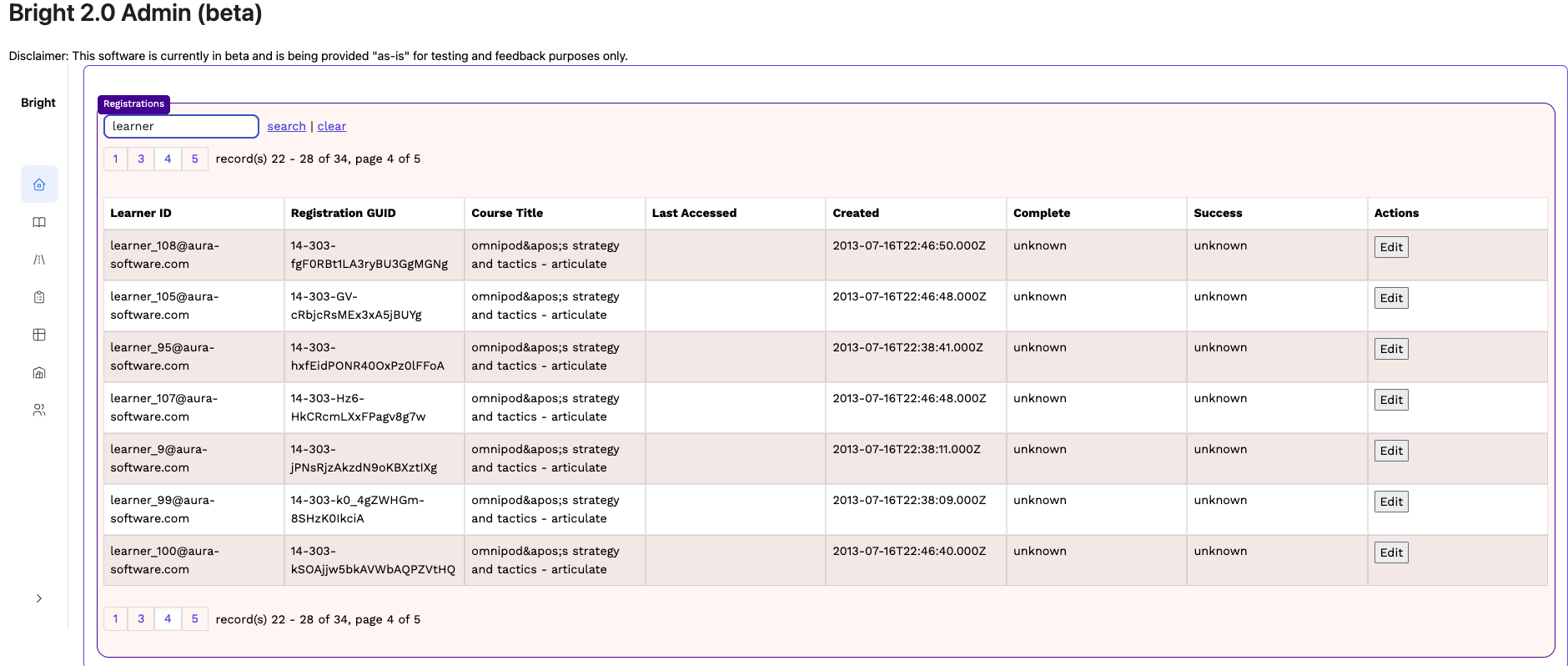
You can use this section to inspect learner registrations and make corrections when needed. You can use it to fix stalled completion/success values, adjust score/date values, and set records to ignore so provider crawls do not overwrite manual updates.
Action: View Registrations List
Purpose
Displays registration records with paging, search, and sorting.
Actions
Edit (per row).
Sort controls on list headers.
Search for registration by Registration GUID or learner ID.
Important notes
Search and sort choices are remembered between visits.
You can use this section to create and maintain learning paths. You can use it to build onboarding paths, change step order, remove or add courses to an existing path, and control whether a path requires registration.
Action: View Learning Paths List
Purpose
Shows learning paths and entry points for create/edit/delete.
Required data fields
No form entry fields.
Action buttons
Create
Edit
Delete
Important notes
Delete requires explicit confirmation.
Delete is temporarily unavailable while the delete is in progress.
You can use this section to maintain course-level behavior in Bright. You can use it to adjust completion/success interpretation, minimum thresholds, and custom metadata fields used by Bright rules and templates.
You can use this section to manage SCORM Cloud provider connections. You can use it to add app credentials, update keys, enable or disable providers, and control crawl-related options.
Action: View Course Providers List
Purpose
Lists SCORM Cloud providers and opens create/edit/delete operations.
Required data fields
No form entry fields.
Action buttons
Create
Edit
Delete (available only before the provider is confirmed)
Important notes
Delete is available only for providers that are not yet confirmed.
Search and pagination support for large provider lists.
You can use this section to manage who has access to realm administration features. You can use it to update roles (subscriber, administrator, owner) to match support, operations, and project responsibilities.
Action: View Realm Users List
Purpose
Lists realm users and opens role editing.
Required data fields
No form entry fields.
Action buttons
Edit
Important notes
Supports paging and search across large user lists.
Search and page choices are remembered between visits.
You can use this section to create and maintain invitation records. You can use it to assign a bundle of courses to a group of learners, add or remove learners over time, and store invitation-level custom fields.
Action: View Invitations List
Purpose
Lists invitations and provides quick entry to create/edit.
This guide targets the WordPress-embedded managed admin flow (Bright > Admin 2.0 Beta).
Authentication-only screens used in unmanaged mode (for example login/create-account) are intentionally excluded because they are not part of the standard WordPress managed admin runtime.