NOTE: some customizations can change how Bright products are linked. If you have a customized site please check with Bright support if this document is relevant for your implementation
Conceptually, in this article we will cover how to create product metadata for a WooCommerce product to link the product to one or more Bright courses.
Select your product
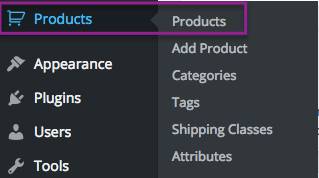
From the wordpress administrative wp-admin interface, find the woocommerce menu in the left sidebar, and select the products selection in the products menu:
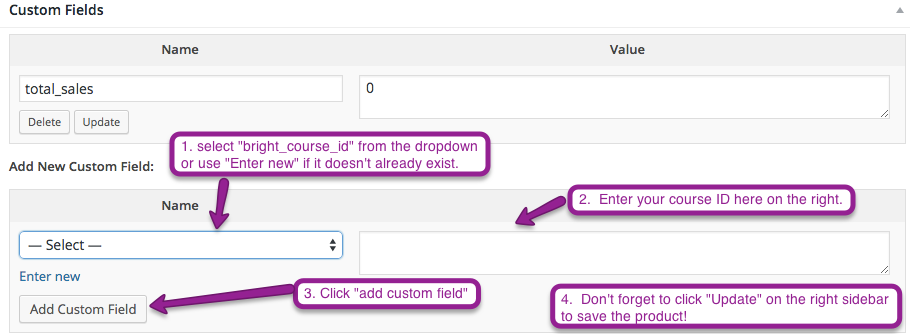
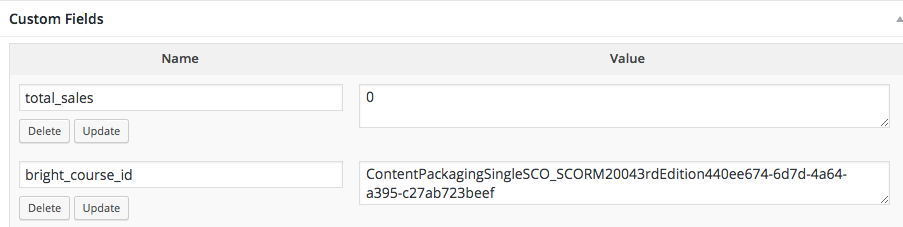
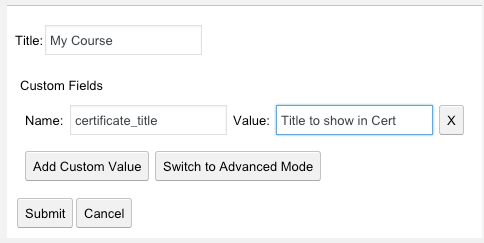
A bright course is linked to the woocommerce product via a custom field on the product called bright_course_id. Please Note: It is possible to enter multiple bright course ids here. Just repeat the procedure below on multiple lines.
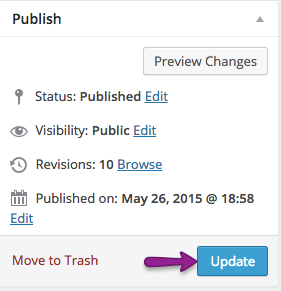
Remember, don't forget to click update!!!
Linking Multiple Products
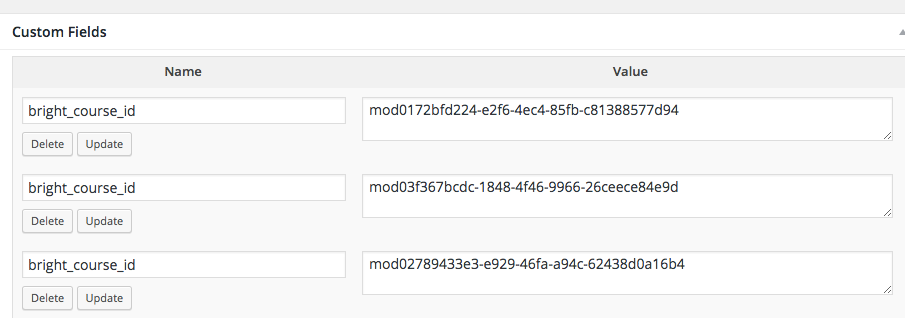
Multiple products can be linked as follows, using multiple rows.
Starting in Bright 12.6.12 it is also possible to put multiple course IDs in a single entry, separated by a comma with no whitespace.
No field bright_course_id found.
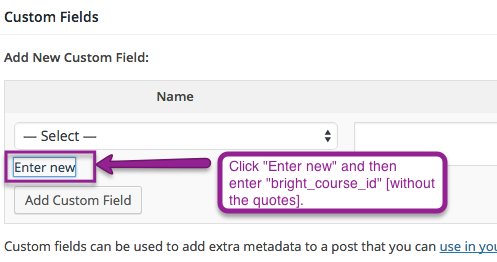
If you don't see the bright_course_id field in the dropdown of the post custom fields, just add it via the new button:
What's next?
If you've following the instructions correctly,
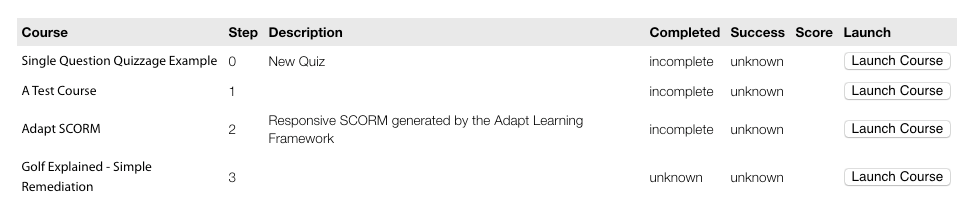
you will see your course ID like this:
Customer purchases of this product will result in the purchasing user being granted access to the associated course via a course registration.